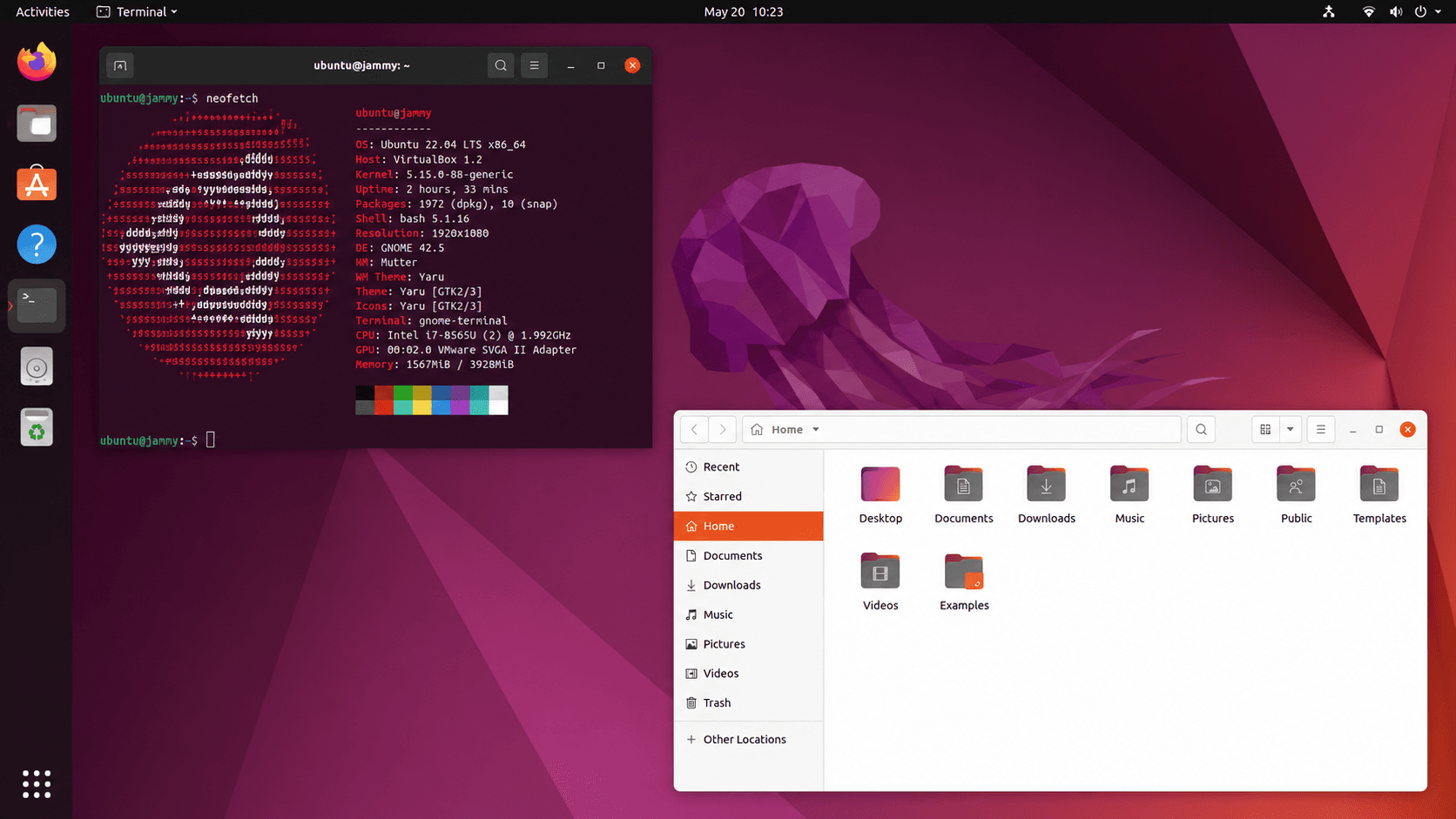
Ubuntu: A Comprehensive Introduction to the Linux Operating System
Introduction
Ubuntu is a free and open-source operating system based on the Linux kernel. It is one of the most widely used Linux distributions and is designed for personal computers, servers, cloud environments, development platforms, and enterprise infrastructure.
Ubuntu is known for being relatively easy to install, secure, stable, and supported by a large global community. It is commonly used by software developers, system administrators, cloud engineers, cybersecurity professionals, students, businesses, and data centers.
The name Ubuntu comes from a Southern African philosophy often translated as:
“Humanity toward others.”
The Ubuntu operating system is developed and maintained by Canonical, together with contributors from the open-source community.
What Is an Operating System?
An operating system is the main software that manages a computer’s hardware and applications.
It acts as a bridge between the user, the installed applications, and physical components such as:
The processor
Memory
Hard drives
Network interfaces
Keyboards and mice
Displays
Printers
USB devices
Common operating systems include Microsoft Windows, macOS, Android, iOS, and Linux-based systems such as Ubuntu.
Ubuntu provides the environment required to run applications, manage files, connect to networks, control users, apply security settings, and communicate with hardware devices.
What Is Linux?
Linux is the kernel at the core of Ubuntu.
A kernel is the central part of an operating system. It manages processes, memory, storage devices, networking, hardware drivers, and communication between applications and the computer.
Linux itself is not normally distributed as a complete desktop operating system. Instead, organizations and communities combine the Linux kernel with system tools, package managers, desktop environments, and applications. The resulting complete systems are called Linux distributions.
Examples of Linux distributions include:
Ubuntu
Debian
Red Hat Enterprise Linux
Rocky Linux
AlmaLinux
Fedora
Linux Mint
Arch Linux
Kali Linux
openSUSE
Ubuntu is based on Debian but provides its own release cycle, software repositories, installation tools, support services, and desktop experience.
3. Major Ubuntu Editions
Ubuntu is available in several editions designed for different purposes.
Ubuntu Desktop
Ubuntu Desktop is designed for laptops and desktop computers. It includes a graphical user interface, web browser, file manager, office applications, system settings, and other programs required for normal computer use.
It is suitable for:
Office work
Software development
Internet browsing
Education
Multimedia
Remote administration
Personal computing
Ubuntu Desktop normally uses the GNOME desktop environment.
Ubuntu Server
Ubuntu Server is designed for servers and normally does not include a graphical desktop interface by default.
Administrators usually manage it through the command line, SSH, automation tools, or web-based management applications.
Ubuntu Server can be used for:
Web hosting
Database servers
Mail servers
DNS servers
File servers
Virtualization
Container hosting
Cloud computing
Monitoring systems
Backup systems
Application servers
Ubuntu Core
Ubuntu Core is a lightweight and highly controlled edition intended mainly for Internet of Things devices, embedded systems, appliances, and specialized equipment.
It uses containerized packages called snaps and focuses on security, reliability, and transactional updates.
Ubuntu Cloud Images
Canonical publishes optimized Ubuntu images for public and private cloud platforms.
Ubuntu is commonly deployed on platforms such as:
Amazon Web Services
Microsoft Azure
Google Cloud
OpenStack
VMware
Proxmox
DigitalOcean
Oracle Cloud
Ubuntu Release Types
Ubuntu releases generally fall into two categories.
Long-Term Support Releases
Long-Term Support releases are commonly called LTS releases.
They are intended for users and organizations that need stability, long-term maintenance, predictable updates, and extended security support.
LTS versions are especially suitable for:
Production servers
Enterprise systems
Business workstations
Cloud environments
Long-term projects
Educational laboratories
For production environments, an LTS release is usually preferred over a short-term release.
Interim Releases
Interim releases are published between LTS versions.
They include newer software, kernels, drivers, and features, but they have shorter support periods. They are more suitable for testing new features, development environments, or users who prefer newer software and can upgrade regularly.
Ubuntu Desktop Environment
Ubuntu Desktop normally uses GNOME as its graphical desktop environment.
The desktop interface provides:
An application launcher
A taskbar or dock
Workspaces
System notifications
Network controls
Sound settings
User session management
A graphical file manager
Accessibility tools
Display settings
The default file manager is commonly called Files, although its underlying GNOME application is known as Nautilus.
Users who prefer a different desktop environment can install an official Ubuntu flavor.
Common Ubuntu flavors include:
Kubuntu, which uses KDE Plasma
Xubuntu, which uses Xfce
Lubuntu, which uses LXQt
Ubuntu MATE
Ubuntu Budgie
Ubuntu Studio
Ubuntu Cinnamon
These flavors use the same Ubuntu software foundations but provide different interfaces and default applications.
The Ubuntu File System
Unlike Windows, which commonly uses drive letters such as C: and D:, Ubuntu organizes files under a single directory tree beginning with the root directory:
/
Important directories include:
/home
Contains personal directories for normal users.
For example:
/home/alan
A user normally stores documents, downloads, pictures, videos, and personal configuration files inside their home directory.
/root
The home directory of the root administrative account.
It should not be confused with the root directory /.
/etc
Contains system-wide configuration files.
Examples include network configuration, service settings, SSH configuration, and application configuration.
/var
Contains frequently changing data such as:
Logs
Mail queues
Databases
Cache files
Web content
Application state
/var/log
Contains system and application log files.
Administrators often inspect this directory during troubleshooting.
cd ~
Create a directory
mkdir project
Create an empty file
touch notes.txt
Copy a file
cp source.txt destination.txt
Move or rename a file
mv old-name.txt new-name.txt
Remove a file
rm file.txt
Remove a directory and its contents
rm -r directory-name
The rm command should be used carefully because deleted files are not normally moved to a recycle bin when removed from the terminal.
View a text file
cat file.txt
For longer files:
less file.txt
Search for text
grep "error" application.log
Search for files
find /var/log -name "*.log"
Package Management
Ubuntu uses packages to install and manage software.
The main command-line package management tool is APT.
Update the package index
sudo apt update
This command downloads the latest package information from configured repositories. It does not install software updates by itself.
Upgrade installed packages
sudo apt upgrade
Install a package
sudo apt install nginx
Remove a package
sudo apt remove nginx
Remove a package and its configuration
sudo apt purge nginx
Remove unused dependencies
sudo apt autoremove
Search for a package
apt search package-name
View package information
apt show package-name
Ubuntu also supports Snap packages. Some users additionally install Flatpak, although it is not enabled by default in every Ubuntu installation.
For production servers, administrators should understand where software comes from and should avoid blindly executing installation scripts downloaded from unknown sources.
Managing Services with systemd
Most modern Ubuntu systems use systemd to manage services.
A service is a background application such as a web server, database, SSH server, or monitoring agent.
Check a service
sudo systemctl status nginx
Start a service
sudo systemctl start nginx
Stop a service
sudo systemctl stop nginx
Restart a service
sudo systemctl restart nginx
Reload configuration without a full restart
sudo systemctl reload nginx
Enable a service during boot
sudo systemctl enable nginx
Disable automatic startup
sudo systemctl disable nginx
Check whether a service is enabled
systemctl is-enabled nginx
Before restarting an important production service, administrators should validate its configuration whenever the application provides a validation command.
For example, Nginx configuration can be checked using:
sudo nginx -t
Only after a successful validation should the service normally be reloaded or restarted.
Ubuntu Networking
Ubuntu supports wired, wireless, virtual, and cloud networking.
Useful commands include:
Display IP addresses
ip address
A shorter form is:
ip a
Display routing information
ip route
Test network reachability
ping 8.8.8.8
Test DNS resolution
getent hosts example.com
Display listening ports
sudo ss -tulpn
Test an HTTP service
curl -I https://example.com
Check DNS records
The dig command is available through the dnsutils package:
sudo apt install dnsutils
dig example.com
Ubuntu Server Network Configuration
Ubuntu Server commonly uses Netplan for persistent network configuration.
Netplan configuration files are usually stored under:
/etc/netplan/
A configuration should be inspected and backed up before modification.
After making changes, administrators can test them with:
sudo netplan try
This is generally safer for remote servers than immediately applying an unverified configuration because an incorrect network configuration can disconnect the SSH session.
Remote Administration with SSH
SSH allows administrators to securely access Ubuntu servers remotely.
The SSH server can be installed with:
sudo apt update
sudo apt install openssh-server
Check its status:
sudo systemctl status ssh
Connect from another machine:
ssh username@server-ip
Example:
ssh alan@192.168.1.50
SSH Key Authentication
SSH keys are generally safer and more manageable than password-only authentication.
Generate a key on the client computer:
ssh-keygen -t ed25519
Copy the public key to the server:
ssh-copy-id username@server-ip
Before disabling password authentication, administrators should confirm that key-based login works in a separate terminal session. Otherwise, they may lock themselves out of the server.
Ubuntu Firewall
Ubuntu commonly uses Uncomplicated Firewall, known as UFW.
Check firewall status
sudo ufw status verbose
Allow SSH
sudo ufw allow OpenSSH
Allow HTTP
sudo ufw allow 80/tcp
Allow HTTPS
sudo ufw allow 443/tcp
Enable the firewall
sudo ufw enable
Remove a rule
sudo ufw delete allow 80/tcp
Administrators should always allow their active management port before enabling a firewall on a remote server.
A firewall is only one security control. It does not replace secure passwords, SSH keys, updates, access restrictions, monitoring, backups, and application security.
Logs and Troubleshooting
Ubuntu records system and application events in log files and the system journal.
View recent system messages
sudo journalctl
View messages for the current boot
sudo journalctl -b
View logs for a service
sudo journalctl -u nginx
Follow logs in real time
sudo journalctl -u nginx -f
Validate that the service is working after the change.
Monitoring System Resources
Useful commands for checking system resources include:
CPU and memory activity
top
A more user-friendly tool called htop can be installed with:
sudo apt install htop
Memory usage
free -h
Disk usage by file system
df -h
Disk usage by directory
du -sh /var/*
Running processes
ps aux
System uptime and load
uptime
Backups and Recovery
A backup is only useful if it can be restored successfully.
Important data may include:
Application files
Databases
Configuration files
User files
SSL certificates
SSH configuration
Scheduled tasks
A server snapshot is useful but should not always be treated as the only backup. Snapshots may reside on the same infrastructure and may not protect against provider failure, account compromise, accidental deletion, or corruption.
Ubuntu for Web Hosting
Ubuntu is commonly used to host websites and web applications.
A typical web stack may include:
Nginx or Apache
PHP, Node.js, Python, Java, or another runtime
MySQL, MariaDB, or PostgreSQL
sudo apt update
sudo apt install nginx
Verify the service:
sudo systemctl status nginx
Validate its configuration:
sudo nginx -t
A production web server should not be considered complete merely because the homepage is accessible. Administrators must also verify security, logging, backups, certificate renewal, database protection, resource limits, monitoring, and recovery procedures.
Ubuntu for Containers and Cloud Computing
Ubuntu is widely used for containerized workloads.
Docker or another container runtime can host isolated application environments. Kubernetes can coordinate containers across multiple servers.
Containers can improve deployment consistency, but they do not automatically provide complete security or isolation.
Administrators must still manage:
Container image sources
Image updates
Secrets
Networks
Storage volumes
Resource limits
Logging
Backups
Host security
Access permissions
Ubuntu is also commonly used as the base operating system for cloud servers because it is widely supported by cloud providers, automation tools, application platforms, and infrastructure management systems.
Advantages of Ubuntu
Ubuntu offers several important advantages.
Open-Source Software
Its source code is available for inspection, modification, and redistribution under applicable open-source licenses.
No Traditional Desktop License Fee
Ubuntu can generally be downloaded, installed, and used without purchasing a traditional operating-system license.
Large Community
Ubuntu has a large community that creates tutorials, packages, troubleshooting discussions, and documentation.
Strong Server and Cloud Adoption
Ubuntu is widely supported by hosting providers, cloud platforms, automation tools, development frameworks, and container technologies.
Security and Updates
Supported releases receive security updates and package maintenance.
Flexibility
Ubuntu can run on personal computers, servers, virtual machines, cloud instances, embedded systems, and development environments.
Powerful Automation
Ubuntu works well with tools such as:
Bash
Python
Ansible
Terraform
Docker
Kubernetes
Git
CI/CD systems
Limitations and Challenges
Ubuntu also has limitations.
Learning Curve
Users moving from Windows or macOS may need time to understand Linux permissions, commands, package management, and file-system organization.
Software Compatibility
Some commercial applications are developed only for Windows or macOS.
Alternatives, browser-based versions, virtualization, compatibility layers, or dual-boot configurations may be required.
Hardware Compatibility
Most common hardware is supported, but specialized devices may require additional drivers or may not provide full Linux support.
Administrative Risk
Linux gives administrators significant control. Incorrect commands executed with sudo can delete data, break services, change permissions, or disconnect a remote server.
Fragmentation
Linux offers many distributions, desktop environments, package formats, and configuration methods. This flexibility can be confusing for beginners.
Recommended Ubuntu Administration Workflow
A safe administrator should avoid making changes based only on assumptions.
A professional workflow is:
Step 1: Inspect
Check the actual system state.
Examples:
cat /etc/os-release
uname -r
df -h
free -h
ip address
ip route
sudo ss -tulpn
systemctl --failed
Step 2: Diagnose
Review logs, configuration files, service status, dependencies, and recent changes.
Step 3: Back Up
Create a backup of important files before modifying them.
Example:
sudo cp /etc/example.conf /etc/example.conf.backup-2026-07-12
Step 4: Make the Smallest Safe Change
Avoid changing multiple unrelated settings at once.
Step 5: Validate Configuration
Use the application’s configuration-checking command whenever available.
Step 6: Reload or Restart
Reload the service when a reload is sufficient. Restart only when required.
Step 7: Verify
Confirm that the service, network port, application, and user workflow operate correctly.
Step 8: Document
Record the problem, root cause, commands used, files changed, validation performed, and rollback procedure.
Useful Ubuntu System Information Commands
Check Ubuntu version
cat /etc/os-release
Another option is:
lsb_release -a
The second command may require the lsb-release package.
Check kernel version
uname -r
Check system architecture
uname -m
Check hostname
hostnamectl
Conclusion
Ubuntu is a flexible, secure, and widely supported Linux-based operating system. It can serve as a personal desktop, production server, software development environment, cloud platform, container host, or foundation for enterprise infrastructure.
Its greatest strengths include open-source development, broad community support, package availability, automation capabilities, and suitability for servers and cloud environments.
However, successful Ubuntu administration requires more than learning commands. Administrators must understand permissions, services, networking, updates, security, monitoring, backups, and recovery.
The safest approach is always to inspect the real system, identify the root cause, make the smallest necessary change, validate the result, and document the work.