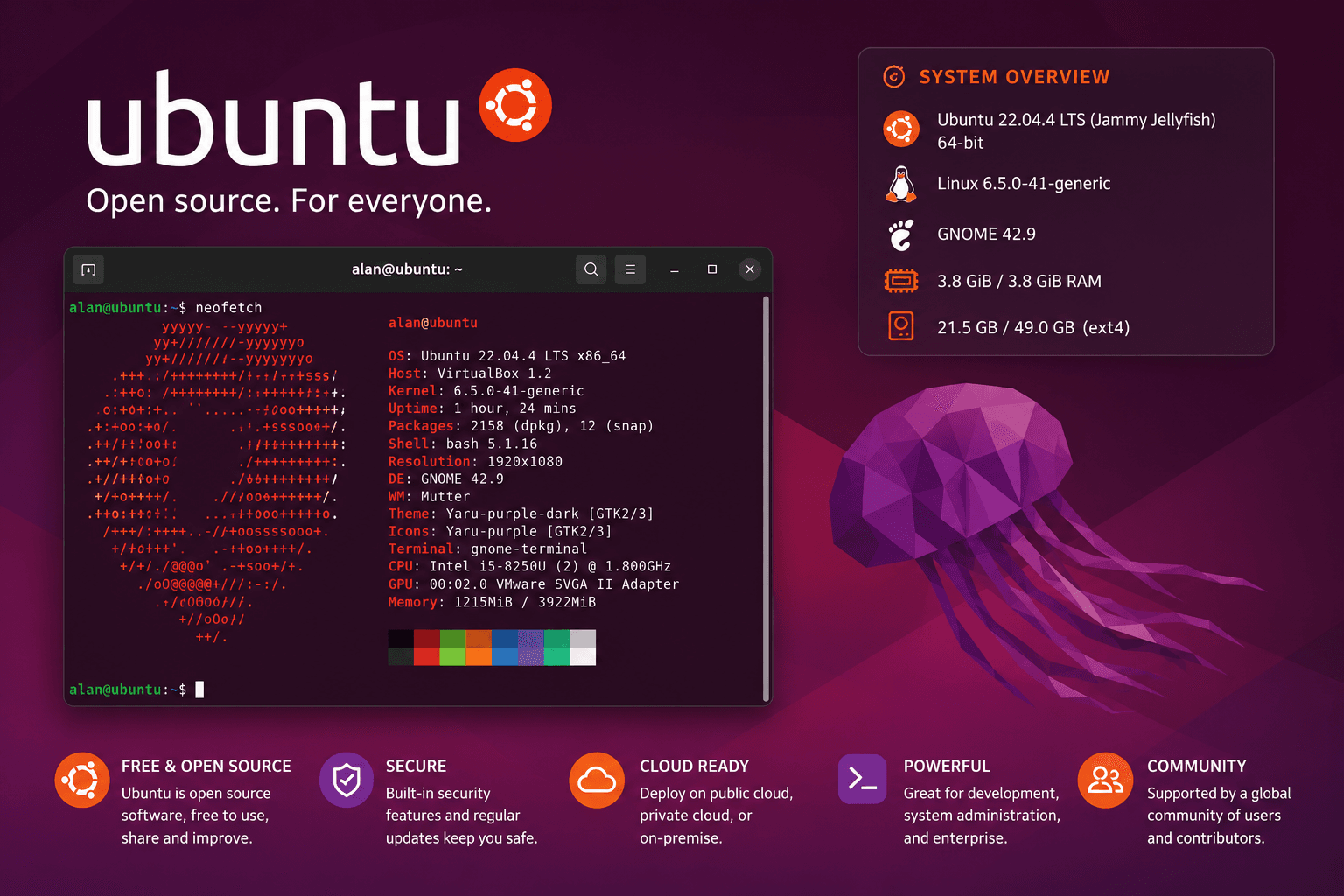
Ubuntu: A Comprehensive Introduction to the Linux Operating System
Introduction
Ubuntu is a free and open-source operating system based on the Linux kernel. It is one of the most widely used Linux distributions and is designed for personal computers, servers, cloud environments, development platforms, and enterprise infrastructure.
Ubuntu is known for being relatively easy to install, secure, stable, and supported by a large global community. It is commonly used by software developers, system administrators, cloud engineers, cybersecurity professionals, students, businesses, and data centers.
The name Ubuntu comes from a Southern African philosophy often translated as:
“Humanity toward others.”
The Ubuntu operating system is developed and maintained by Canonical, together with contributors from the open-source community.
1. What Is an Operating System?
An operating system is the main software that manages a computer’s hardware and applications.
It acts as a bridge between the user, the installed applications, and physical components such as:
The processor
Memory
Hard drives
Network interfaces
Keyboards and mice
Displays
Printers
USB devices
Common operating systems include Microsoft Windows, macOS, Android, iOS, and Linux-based systems such as Ubuntu.
Ubuntu provides the environment required to run applications, manage files, connect to networks, control users, apply security settings, and communicate with hardware devices.
2. What Is Linux?
Linux is the kernel at the core of Ubuntu.
A kernel is the central part of an operating system. It manages processes, memory, storage devices, networking, hardware drivers, and communication between applications and the computer.
Linux itself is not normally distributed as a complete desktop operating system. Instead, organizations and communities combine the Linux kernel with system tools, package managers, desktop environments, and applications. The resulting complete systems are called Linux distributions.
Examples of Linux distributions include:
Ubuntu
Debian
Red Hat Enterprise Linux
Rocky Linux
AlmaLinux
Fedora
Linux Mint
Arch Linux
Kali Linux
openSUSE
Ubuntu is based on Debian but provides its own release cycle, software repositories, installation tools, support services, and desktop experience.
Ubuntu Core
Ubuntu Core is a lightweight and highly controlled edition intended mainly for Internet of Things devices, embedded systems, appliances, and specialized equipment.
It uses containerized packages called snaps and focuses on security, reliability, and transactional updates.
Ubuntu Cloud Images
Canonical publishes optimized Ubuntu images for public and private cloud platforms.
Ubuntu is commonly deployed on platforms such as:
Amazon Web Services
Microsoft Azure
Google Cloud
OpenStack
VMware
Proxmox
DigitalOcean
Oracle Cloud
4. Ubuntu Release Types
Ubuntu releases generally fall into two categories.
Long-Term Support Releases
Long-Term Support releases are commonly called LTS releases.
They are intended for users and organizations that need stability, long-term maintenance, predictable updates, and extended security support.
LTS versions are especially suitable for:
Production servers
Enterprise systems
Interim Releases
Interim releases are published between LTS versions.
They include newer software, kernels, drivers, and features, but they have shorter support periods. They are more suitable for testing new features, development environments, or users who prefer newer software and can upgrade regularly.
5. Ubuntu Desktop Environment
Ubuntu Desktop normally uses GNOME as its graphical desktop environment.
The desktop interface provides:
An application launcher
A taskbar or dock
The default file manager is commonly called Files, although its underlying GNOME application is known as Nautilus.
Users who prefer a different desktop environment can install an official Ubuntu flavor.
Common Ubuntu flavors include:
Kubuntu, which uses KDE Plasma
Xubuntu, which uses Xfce
Lubuntu, which uses LXQt
Create a directory
mkdir project
Create an empty file
touch notes.txt
Copy a file
cp source.txt destination.txt
Move or rename a file
mv old-name.txt new-name.txt
Remove a file
rm file.txt
Remove a directory and its contents
rm -r directory-name
The rm command should be used carefully because deleted files are not normally moved to a recycle bin when removed from the terminal.
View a text file
cat file.txt
For longer files:
less file.txt
Search for text
grep "error" application.log
Search for files
find /var/log -name "*.log"
9. Package Management
Ubuntu uses packages to install and manage software.
The main command-line package management tool is APT.
Update the package index
sudo apt update
This command downloads the latest package information from configured repositories. It does not install software updates by itself.
11. Ubuntu Networking
Ubuntu supports wired, wireless, virtual, and cloud networking.
Useful commands include:
Display IP addresses
ip address
A shorter form is:
ip a
Display routing information
ip route
Test network reachability
ping 8.8.8.8
Test DNS resolution
getent hosts example.com
Display listening ports
sudo ss -tulpn
Test an HTTP service
curl -I https://example.com
Check DNS records
The dig command is available through the dnsutils package:
sudo apt install dnsutils
dig example.com
Ubuntu Server Network Configuration
Ubuntu Server commonly uses Netplan for persistent network configuration.
Netplan configuration files are usually stored under:
/etc/netplan/
A configuration should be inspected and backed up before modification.
After making changes, administrators can test them with:
sudo netplan try
This is generally safer for remote servers than immediately applying an unverified configuration because an incorrect network configuration can disconnect the SSH session.
12. Remote Administration with SSH
SSH allows administrators to securely access Ubuntu servers remotely.
The SSH server can be installed with:
sudo apt update
sudo apt install openssh-server
Check its status:
sudo systemctl status ssh
Connect from another machine:
ssh username@server-ip
Example:
ssh alan@192.168.1.50
SSH Key Authentication
SSH keys are generally safer and more manageable than password-only authentication.
Generate a key on the client computer:
ssh-keygen -t ed25519
Copy the public key to the server:
ssh-copy-id username@server-ip
Before disabling password authentication, administrators should confirm that key-based login works in a separate terminal session. Otherwise, they may lock themselves out of the server.
13. Ubuntu Firewall
Ubuntu commonly uses Uncomplicated Firewall, known as UFW.
Check firewall status
sudo ufw status verbose
Allow SSH
sudo ufw allow OpenSSH
Allow HTTP
sudo ufw allow 80/tcp
Allow HTTPS
sudo ufw allow 443/tcp
Enable the firewall
sudo ufw enable
Remove a rule
sudo ufw delete allow 80/tcp
Administrators should always allow their active management port before enabling a firewall on a remote server.
A firewall is only one security control. It does not replace secure passwords, SSH keys, updates, access restrictions, monitoring, backups, and application security.
14. Logs and Troubleshooting
Ubuntu records system and application events in log files and the system journal.
View recent system messages
sudo journalctl
View messages for the current boot
sudo journalctl -b
View logs for a service
sudo journalctl -u nginx
Follow logs in real time
sudo journalctl -u nginx -f
Show recent critical errors
sudo journalctl -p err
Traditional application logs are also commonly stored under:
/var/log/
Examples include:
/var/log/auth.log
/var/log/syslog
/var/log/nginx/
/var/log/apache2/
A proper troubleshooting process should normally follow these steps:
Confirm the exact error and when it started.
Inspect the service status.
Check recent logs.
Verify available disk space and memory.
Validate configuration files.
Check ports and network connectivity.
Identify recent changes.
Apply the smallest safe correction.
Restart or reload only when necessary.
Validate that the service is working after the change.
15. Monitoring System Resources
Useful commands for checking system resources include:
CPU and memory activity
top
A more user-friendly tool called htop can be installed with:
sudo apt install htop
Memory usage
free -h
Disk usage by file system
df -h
Disk usage by directory
du -sh /var/*
Running processes
ps aux
System uptime and load
uptime
Block devices and disks
lsblk
Detailed disk information
sudo fdisk -l
A server can fail even when CPU and memory appear normal. Administrators should also monitor disk space, inodes, network availability, service health, logs, database performance, and application-specific metrics.Automatic Security Updates
Ubuntu can be configured to install selected security updates automatically through the unattended-upgrades system.
However, production environments should still have:
Monitoring
Maintenance procedures
Change records
Backup verification
Reboot planning
Application validation
Automatic updates do not eliminate the need for operational oversight.